
Uninstalling O365 (Multiple Versions)

Steel Nissan
After using PDQ Inventory we realized there are multiple versions of O365 installed on users PC. We want to upgrade everyone to 2016 but the first step is to uninstall the older version.
We can either use PDQ Inventory to uninstall O365 one by one or create a package in PDQ deploy to uninstall a specific version. (Both tedious)
Is there a way that we an use PDQ deploy to uninstall O365 regardless of versions? Only thing that seems to work is to specify the version to uninstall but there are roughly 20 versions out there that are installed on users PC.
0
Comments
I have created a Powershell script that I use to upgrade to Office 365 ProPlus 2016 (Click to Run).
The script will:
- Check for running Office application and offer a prompt to close them (can be edited to force close)
- Scan for ANY older Office version and uninstall it:
- Office 2003
- Office 2007
- Office 2010
- Office 2013 (MSI installer)
- Office 2013 (365 ProPlus - Click to Run)
Once previous version is uninstalled, it will install the latest Office 365 ProPlus 2016.
I use this with SCCM and it works perfectly fine. Already upgraded 100+ devices without any complaint.
I am new to PDQ Deploy and I'm still playing with it so I'm not sure how easy or how difficult it would be to deploy that script with PDQ.
I've used PSAppDeployToolkit as template.
If you are interested I can share it with you (or the community).
You can just create a package with a Powershell Step, and insert your Script file. It'll run just fine that way, with the same success as SCCM.
There's no good way to upload scripts here in full, but if you post text of the script we can copy/paste it into an editor and save it as a ps1.
I for one would love to see it, as I'm kind of addicted to Powershell. Haha.
I'll try to share it with you.
I've already shared it in the PSAppDeployToolkit community but the forum over there is a mess.
Also shared it once on a Technet forum, but I made some changes since then.
So, as I mentioned, I used the PSAppDeployToolkit which contains a lot of great functions you can use to deploy apps.
The same script can be used to install/upgrade any previous version of Office to the Click to Run version of Office 365 ProPlus 2016 AND to uninstall Office 2016.
Depending on what parameter switch you use.
The script will not uninstall MS Visio and MS Project but it can be easily adjusted to do so if required.
For the uninstall I use the Offscrub files from Microsoft. (Extracted from a fixit)
For your reference, here is the folder structure of the PsAppDeploykit working directory:
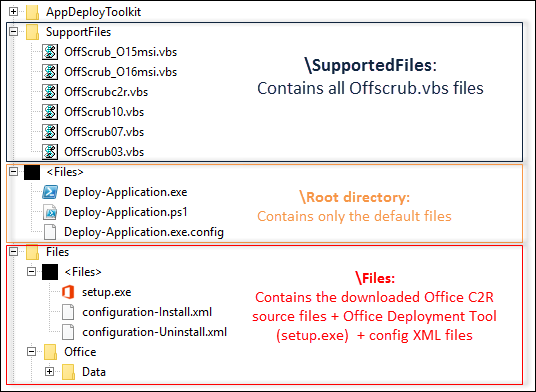
To make it easy for you, I have shared the working directory with the complete script, Office Deployment Tool + config.xml file and with all the Offscrub.vbs files.
Does not include (obviously) the Office source files. These you have to download yourself.
Or don't... If you don't include the Office files offline, the installer will stream the necessary files from the Microsoft CDN.
Download here:
https://drive.google.com/open?id=0B1RmM7netsG3blBmLXdHVVdVcjg
To deploy...
Either use the Deploy-Application.exe (which will call the .ps1 file). This way you don't have to deploy it as a Powershell script.
Or you can deploy it using the Deploy-Application.ps1
Whatever you choose, these are the parameters for your deployment:
Deploy-Application.exe -DeploymentType Install -DeployMode Interactive
or
Deploy-Application.ps1 -DeploymentType Install -DeployMode Interactive
This is for the interactive deployment where you will see some prompts to close open applications and some other informational dialogues.
For silente deployment, change the Interactive to Silent:
Deploy-Application.exe -DeploymentType Install -DeployMode Silent
If you don't want to download the script and working directory, feel free to check out the script on the Technet forum where I've already shared it.
I did made some minor changes since then.
https://social.technet.microsoft.com/Forums/office/en-US/aa81d5a8-779a-482c-9c02-e187ab5d635f/office-2010-x64-x86-removal?forum=officesetupdeploy#32c80aac-09e7-42bd-b373-712f1aa47807
Also important to note:
The config.xml file is for the x64 version of Office.
You have to change the XML to deploy 32 bit version.
Or you can build some logic in the script to install 32 bit Office on 32 bit Windows and 64 bit Office on 64 bit Windows.
---
Hope it's all clear.
Just let me know if you need help.
I would also like to know whether you successfully deployed it with PDQ Deploy :)