
Save a File on Target PC after runing a schedule containing all Deployments

Tim Lambeck
Hi,
I would like to save the Data PDQ Inventory has on the Deployments run on a specific PC saved on that PC as part of a scheduled Deployment.
We use PDQ Deploy to automatically install all standard software on our New PCs. I want to make it easier for our techteam to see if everything was deployed as wanted without checking PDQ Deploy or PDY Inventory themselves. Is it Possible to trigger a Report for the PC and save this report on the target Computer es a deployment package or a step of the install schedule?
0
Comments
Hi Tim,
Im unsure if there is a way to trigger a report for the PC whilst also saving on the PC, but you could use Powershell steps in your packages.
Please know I am no Powershell expert and there is probably a much easier and more elegant way to do this :)
First Step Create the file and give it a path:
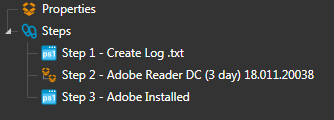
$path = 'C:\tmp'
$file = 'PDQPackageLog.txt'
New-Item -path $path -Name $file -Value "PDQ Deploy Log Created $((Get-Date).ToString())" -ItemType file -force
Final Step adds content to the text file created before:
Add-Content 'C:\tmp\PDQPackageLog.txt' "`r`nAdobe Installed Successfully $((Get-Date).ToString())"
Should end up with something like this:
Hi Callan,
thanks for the response.
That could be a possible solution. The only problem is, that only successes would show up.
The nice thing about the database of PDQ Inventory is that the failures are also shown including the reason for failing.
That's why I wanted to get the Data through PDQ Inventory.
The Reporting PDQ Deploy brings naturally is, as far as I know, package based and not per PC, which would be an alternative.
Hi Tim,
I like the idea, you have my +1 for a feature request. I've only just scratched powershell and what it can offer, as a temporary solution you could use an if statement to determine the successful or unsuccessful installs.
There may be a way to reference the output.log PDQ generates for every deployment and get more information for your log but that's out of my depths. Output logs are stored on the console machine: C:\ProgramData\Admin Arsenal\PDQ Deploy\Deployment Output